Manage the coding agents on your computer from anywhere.
No need to turn on Remote Control for every session. Start Claude Code, Codex or Gemini CLI on your Mac or Windows PC the way you always do. Foreman picks the session up, and you can follow it, answer it and approve it from iPhone, iPad, Mac, Apple Watch, Android and Windows.
Your turnForeman speaks up only when an agent is waiting for your approval or answer. The rest of the time it stays quiet.
- Servers of ours
- Zero
- Where your data goes
- Your computer · your devices · your cloud account
- Sign-up
- None
Foreman isn’t out yet. The apps for every device ship together in the first version, and the computer that runs your agents (the host) can be a Mac or a Windows PC.
Where to get it at launch
- App StoreiPhone · iPad · Apple WatchComing at launch
- Google PlayAndroidComing at launch
- Microsoft StoreWindows app · Windows hostComing at launch
- Direct download for MacMac app · Mac hostComing at launch

When an agent waits for you, answer from your pocket.
When an agent asks for permission or has a question, the requests from all your computers land in one approval inbox. Every command shows its risk, and anything that can’t be undone needs Face ID.
- Allow or deny straight from the Lock Screen notification
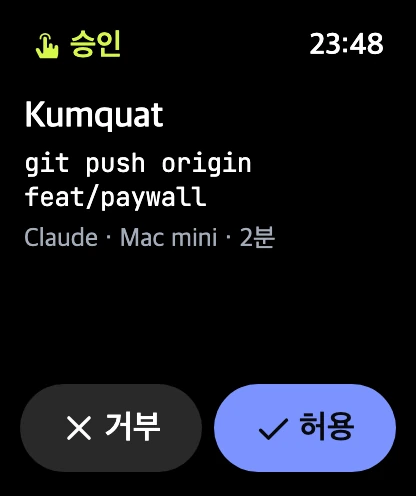
rm -rf,push --force, production databases always ask for Face ID- Approve on Apple Watch (Pro)
- Live Activity for test and build progress (Pro)

Read it as a conversation, or see the real terminal.
A resident process on your computer owns each session. Close the terminal window or lose the connection and the agent keeps running; reopen it and you pick up from the output you missed. The terminal at your computer and your phone can watch the same session at the same time.
- Conversation view: prompts, replies, files read and edited, diffs
- Terminal view: the actual PTY with an ESC, TAB and CTRL key row
- Resume where it dropped, with nothing missed or repeated
- Sessions started as usual show up without any wrapper


Different accounts and limits, one list.
Foreman finds the agent CLIs installed on your computer and connects them. See Claude Code, Codex, Gemini CLI and OpenCode side by side, each with its own account, remaining limit and reset time. Free connects up to two kinds of agent.
- Claude Code · Codex · Gemini CLI · OpenCode, any other CLI in terminal mode
- Personal and work accounts connected separately
- 5-hour and weekly limits with time to reset
- API keys stay on the host computer


When Claude hits its limit, Codex takes over.
With Pro, agents hand work to each other. Close to a limit, the next agent continues with a summary and the diff so far. You can also give implementation, review and testing to different agents, one stage after another.
- Limit failover
- When your personal Claude account reaches 95%, work moves to your work account, then Codex, then Gemini. When all are spent, it waits for the reset and starts again.
- Handoff
- The summary and the diff travel with the task, so context isn’t lost.
- Pipeline
- Claude Code implements, Codex reviews, Gemini CLI tests and fixes. Save the order as a template.
- Race
- Give two agents the same task, compare test results and diffs side by side, keep one.

Sessions keep moving while you sleep.
Turn the commands you always allow into rules, and they go through without asking. Sessions that stopped at a limit continue right after the reset, and in the morning you get one page with what finished, what got stuck and how much limit is left.
- Approval rules: read-only commands, tests and builds, pushes to chosen branches
- Irreversible actions always need Face ID, whatever the rules say
- Resume after the limit resets, automatically
- Morning briefing at the time you choose

iPad becomes the control room.
Lay out the sessions from all your computers as tiles. Sessions waiting for you come first, and you can allow or answer right on the tile.

On the Mac, a full workspace.
The Mac app keeps sessions by host, plus conversation, terminal and changes views, in one window. Approval requests appear right above the conversation, with host status and limits on the right. On the Mac where agents run, a small menu bar helper keeps that Mac working as a host.


Zero servers of ours. Only your computer, your devices and your cloud account.
Foreman first connects your device straight to your computer. Only when it can’t reach it directly does it use your cloud account as a mailbox. Whichever route it lands on, it resumes from the same point the same way.
The host computer doesn’t depend on whose iCloud it is signed in to: a work Mac or a Windows PC works the same way. Your phone issues the host’s access and hands it over through an encrypted channel.
Your devicesyour computer (Mac · Windows)Claude Code · Codex · Gemini CLI
LAN direct
On the same network, the app finds your computer and connects directly.
Peer to peer
Away from home, it connects to your computer directly over WebRTC. Connection details are exchanged through your cloud account.
Cloud mailbox
Used only when a direct connection isn’t possible: your iCloud for iPhone, iPad, Mac and Apple Watch, and an app-only folder in your Google Drive for the Android and Windows apps. The app-only folder holds only files Foreman created; Foreman does not see your other files.
All data is end-to-end encrypted between your devices, and the developer stores and reads nothing. Apart from asking a public STUN server for your public IP address while finding a route, session content never leaves your computer, your devices and your cloud account.
Every device, from the first version.
The computers that run your agents (hosts) and the devices you manage them from are all supported at launch. Each app follows its own platform’s design conventions.
- Apps
- iPhone · iPad · Mac · Apple Watch · Android · Windows
- Hosts
- macOS · Windows. A Mac mini or a Windows PC that stays on works best.


Free for up to two kinds of agent.
The features that let agents hand work to each other and cut the waiting are in Pro. These are the planned launch prices.
2 kinds of agent, 1 host, 3 sessions at a time, 7 days of history
Agent handoff, Autopilot, Watch, Live Activity and widgets, no limits. $69 a year
Shared hosts, delegated and two-person approval, audit log